
Short answer: first decide what you want: just short clips, or a long episode people watch start to finish plus Shorts from it? Then test the tool on your own stream: does it follow your written request, keep moments in story order, avoid cutting sentences in half, give you chapters and captions, let you fix or export the result, and what does it cost per hour of stream? Judge it on your recording, not the demo.
Decide first: clips or an episode?
Tools that turn streams into videos actually do different jobs. They all take a long recording, but what comes out differs. So ask yourself: what do you want to upload from this stream?
- Only Shorts and clips: most of the work is finding the right moment and framing it vertically.
- A long YouTube video: for a 20-40 minute episode from a four-hour stream, the order of moments, how they connect and the flow of the story matter.
- Both: most streamers want both from the same recording. One tool that does both is less hassle than juggling two.
To see how this is done by hand, read our guide on turning a Twitch stream into a YouTube video; it shows which steps a tool should take off your plate.
Types of tools: which one does what?
Sort tools by what they do, not by brand. Three groups cover most of them:
- Clip-focused tools: they scan a long video, turn strong-looking moments into vertical clips and often add captions. They're quick for Shorts, but usually aren't built to assemble a long episode; the clips stand alone and don't tell a story.
- AI editors for long-form video: they transcribe the whole recording, read your request, pick and order moments and deliver a finished long video. Good ones also make Shorts. The real difference is edit quality: do the moments connect, and is the result watchable?
- Traditional editing software and AI helpers: automatic features in Premiere Pro, DaVinci Resolve or Final Cut Pro speed up tasks like cutting silences or transcribing. You keep full control, but watching four hours of stream and building the edit is still your job.
No group is automatically better; it depends on your needs. For long videos, a clip tool leaves you halfway there. For Shorts only, you may not need a long-form editor.
The checklist: what to look for
1. Does it follow your written request?
Can you write “keep the boss fights, cut the lobby waiting, include the argument with chat”, and does the tool really do it? A tool that only picks “the best moments” by its own standard can skip the one that matters to you. Write concrete, checkable points and look for each in the result.
2. Does it connect moments in story order?
In a long video, viewers need to understand what happened and why. If moments are lined up at random, or an event's end comes before its start, you get a clip compilation. Ask yourself: could someone who never saw the stream follow this?
3. Does it cut sentences in half?
A common flaw in automatic editing is cutting mid-speech, and viewers notice a half-finished sentence right away. Listen closely to a few cut points, especially where moments end.
4. Do the long video, Shorts and YouTube extras come together?
Upload-ready means more than the video. Chapters (timestamps), the description, title ideas, a thumbnail, ad break points and Shorts all take time. Note which ones the tool gives you; anything missing, you'll do by hand every time.
5. Are captions and names right?
Automatic captions easily misspell game terms and names. Check for a glossary or similar setting where you can teach it your words. On Shorts, people watching muted read every caption, so mistakes stand out.
6. Can you fix the result?
No AI edit is perfect every time. Two things matter: writing a note to ask for a new version, and an editor where you can fix a single cut yourself. To finish in your own software, check whether the edit exports to Premiere Pro, DaVinci Resolve or Final Cut Pro; see sending a rough cut to your editing software.
Comparing prices properly
These tools price in different units, so comparing monthly fees alone can mislead you. Look at:
- What gets counted? Some tools count the source length, some the finished video, some the number of clips. For a streamer, the clearest measure is how many hours of stream you'll edit each month. Work out your average: how many streams a week, and how long?
- What does a revision cost? Is a re-edit free, or does it use quota?
- Free plan limits: a watermark, lower resolution or capped Shorts is fine for testing, but know which plan gives upload-ready output.
- How long are files kept? Finished videos may be deleted after a while, so download in time.
How to test with your own stream
- Pick an ordinary stream: not your best day. That shows how the tool handles the boring parts.
- Write the same request: give every tool you try the same request, or the comparison isn't fair.
- Make your own list first: note a few must-have moments, then check the result for them. See finding the best moments in a long stream.
- Watch the whole result: the transitions in the middle and the ending show the real quality, not the first two minutes.
- Try a fix: ask for a change or adjust a cut yourself. The easier fixing is, the more time you save in the long run.
Warning signs
- If the tool doesn't ask what you want, or ignores it, the result follows a generic template, not your channel.
- If a tool looks great in demos but won't let you try your own recording, you can't judge it.
- If the tool generates scenes or audio with AI that weren't in your recording, the video may stop feeling like your stream; decide up front whether you want that.
- If the result is a single file you can't fix, one small mistake means redoing everything.
Doing it with Moltum
Moltum edits your stream into a story-driven long YouTube video and Shorts based on the request you write; it doesn't generate footage or voices, it edits your own recording.
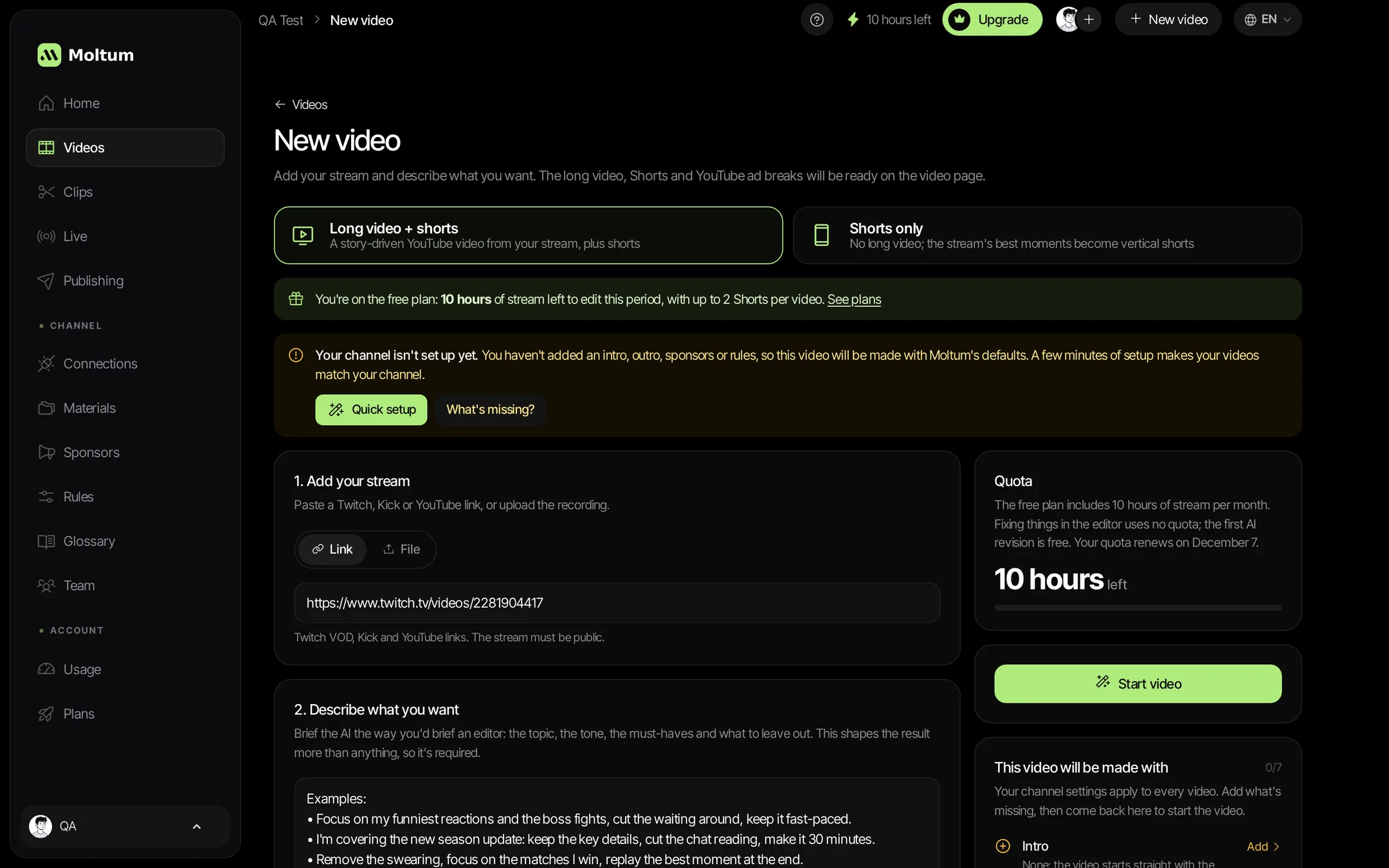
- Add the recording: on the New video page, paste a Twitch, Kick or YouTube link or upload your file; a recording split into parts can become one video with Combine into one video.
- Write your request: in the big text box, list the moments that must be in and the parts to skip, then choose a Target length. At the top of the form, pick Long video + shorts or Shorts only.
- What you get: the video page has the long video, Shorts, a thumbnail, YouTube ad breaks and a YouTube description with chapters.
- Fix it: write a note and click Regenerate, use Open in editor to fix it yourself, or use Export to your editor to finish in Premiere Pro, DaVinci Resolve or Final Cut. Your quota counts the source video's length.
For a step-by-step walkthrough, see Create your first video; compare plans in Plans and quota.
Frequently asked questions
Is a free plan enough for testing?
Usually, yes. Free plans tend to come with a watermark, lower resolution or a capped number of Shorts; none of that gets in the way of judging the edit. Moltum's free plan needs no credit card and gives you up to 720p output with a watermark; the video editor is included.
Should I pick a clip tool or a long-form editor?
If you only post Shorts, a clip-focused tool may be enough. If you regularly turn streams into long YouTube videos, you need an editor that connects moments in story order; a good one gives you Shorts from the same recording too.
Will I still need to do some editing by hand?
Usually a little. A good tool does most of the work, but you make the final calls: dropping a moment, nudging a cut or changing the title. That's why it pays to pick a tool where fixing things is easy.
Is a stream that runs for hours a problem?
Most tools have a length limit or a quota, and long streams use more of it. In Moltum, your quota counts the source video's length; if a stream is longer than your remaining quota, the first part that fits is edited.


