Short answer: when game audio drowns out your voice, the problem usually starts at recording time: the game, music and mic get recorded as one mix, and the balance you hear in your headphones isn't what viewers get. For future recordings, record your mic and game audio to separate tracks in OBS and turn the game down noticeably after a test recording. If the recording you have is already a single track, an EQ boost in your editing software helps a little, but the real fix is separating your voice from the game audio and remixing it. Whichever route you take, check the result on a phone speaker too.
Why does it happen?
While you play, you hear the game in your headphones and your own voice from inside your head, so the mix feels balanced. In the recording, your voice only comes from the mic and competes with all the game noise.
The usual causes:
- Game audio comes in at full strength from desktop audio: the game's own volume is high and desktop audio isn't turned down in your recording software.
- In-game music is on: music sits under your speech like a constant carpet and blurs your words.
- The mic is far away or too quiet: if the mic is far from your mouth, the recording stays weak even when you talk loudly.
- Everything is on one track: if your recording software merged every sound into one track, turning down just the game later isn't easy.
Before you record: put audio on separate tracks
The most lasting fix is keeping your mic and the game audio apart from the start. OBS supports this; menu names can shift a little between versions, but the idea stays the same.
- Separate the sources: make your mic one audio source and game or desktop audio another. On Windows, an application audio capture source that grabs only the game keeps Discord or browser sound out of it.
- Assign tracks: in the advanced audio properties window, tick a different track for each source. For example, track 1 is the full mix, track 2 is only the mic and track 3 is only the game.
- Turn the tracks on for recording: in the recording section of the output settings, select all of those tracks. MKV is usually the easiest format for several tracks; you can remux it to MP4 afterwards.
- Think about the stream separately: a stream usually carries a single mix, and a Twitch or Kick VOD usually contains only that mix too. If you want separate tracks, make a local recording alongside the stream.
With separate tracks, you can lower the game as much as you like later, so the recording stays fixable even if the stream mix was off.
Set levels with a test recording
Separate tracks aren't enough on their own; the mix that goes out on stream needs to be balanced too. Trust the recording, not your ears.
- Make a short test recording: talk at your normal volume for a minute during the loudest part of the game. Then listen back on speakers.
- Watch your mic on the meter: while you talk, the meter should move between green and yellow without hitting red. Red means you're getting close to clipping, where your voice distorts.
- Turn the game down noticeably: most streamers run their game audio louder than they need to. Game audio should sit under your words, not fight them.
- Turn in-game music off or down: it gives your voice room and also reduces possible music copyright trouble.
- Use OBS filters: adding noise suppression, a compressor and a limiter to your mic makes your voice cleaner and more even. Don't overdo it; very strong noise suppression can make you sound robotic.
After recording: rescuing the video you have
If you have separate tracks
This is the easy case. Open the mic and game tracks separately in your editing software. Lower the game track and raise the mic a little if needed. If you want the game to drop automatically while you talk, use ducking (sidechain): the game track dips whenever your mic is active and comes back up when you stop.
If everything is on one track
A Twitch VOD or a single-track recording falls into this group. Your options are more limited here:
- Use EQ to make speech clearer: gently boosting the midrange frequencies that carry speech clarity can push your words forward. But game audio lives in the same frequencies, so don't expect miracles.
- Raising the overall volume doesn't help: if you turn the whole mix up, the game goes up by the same amount and the balance doesn't change.
- Audio separation: AI-based audio separation splits speech from game audio and music into separate parts. You then remix them with the balance you want. On a single-track recording, this is the most effective way to really bring your voice forward.
- Listen closely to the result: after separation your voice can pick up a metallic tone, choppy words or leftover echoes in the background. Check the moments where you shout and where the game is at its loudest.
Final check: listen on different devices
Most viewers watch on a phone speaker, a laptop or earbuds, not studio headphones. Listen to the finished video on at least two devices. If you can follow every word on a phone speaker, the mix is very likely right.
Watch the loudness too. YouTube usually turns very loud videos down on its own, so pushing your mix to the max doesn't make your video sound stronger; it only raises the risk of distortion. Some people watch Shorts with the sound low or off, so captions help your speech land there as well. See our guide on adding automatic captions to a video.
Common mistakes
- Judging with headphones: a mix that sounds balanced in your headphones may not be balanced in the recording. Always listen to the recording itself.
- Muting the game completely: game audio carries the mood of the video. The goal isn't to remove it but to tuck it under your voice. Especially when you make a gaming highlight video, explosions and big plays need to be heard.
- Setting it once and forgetting it: every game has its own loudness, so make a short test recording when you switch games.
- Overdoing filters: cranking noise suppression and the compressor all the way makes your voice sound unnatural.
Doing it with Moltum
If game audio is drowning out your voice in a recording, just say so in your request: Moltum separates your speech from the game sound and music, turns the game down and remixes it with your voice in front.
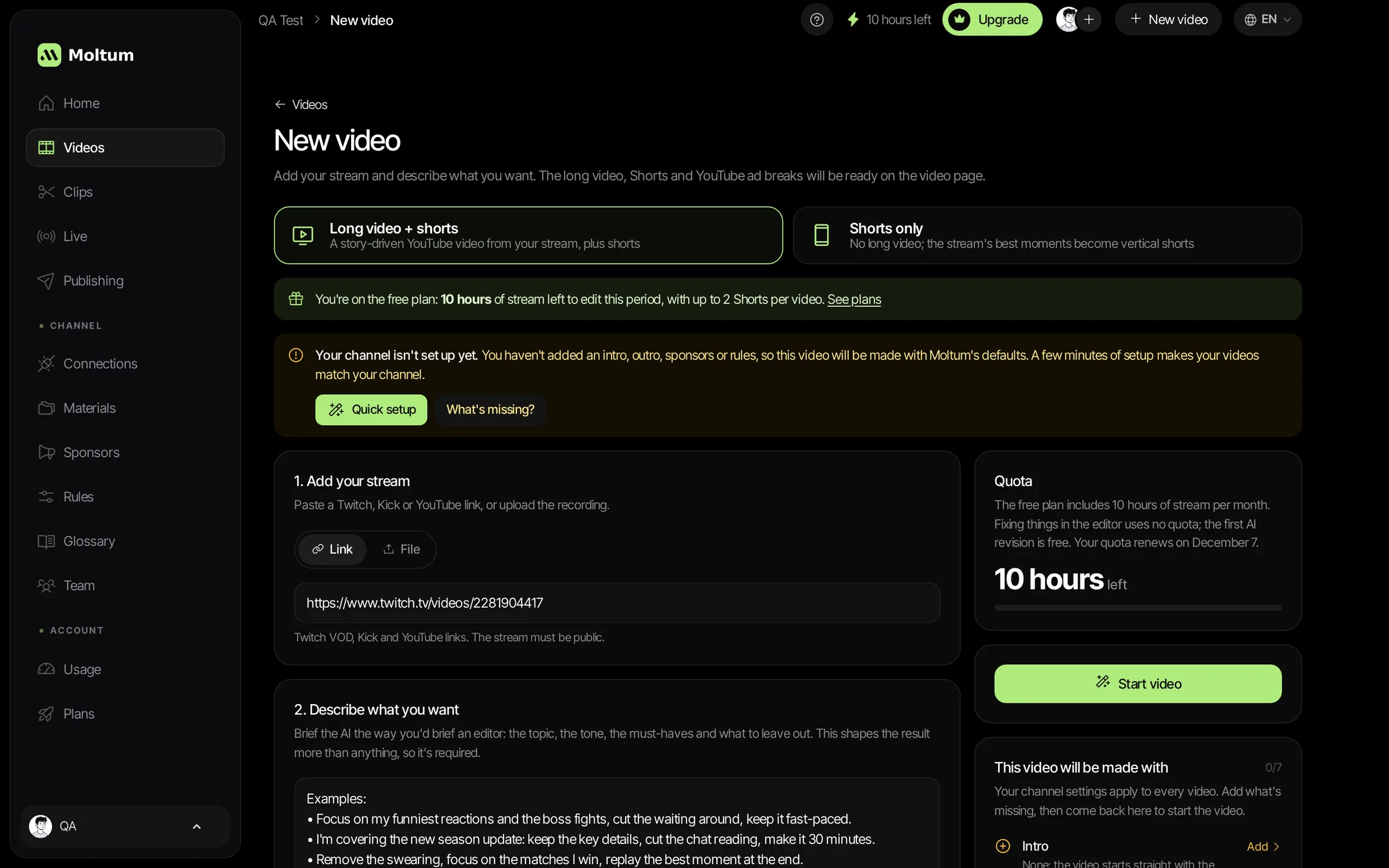
- Write it in your request: on the New video page, add something like "turn the game audio down and my voice up". It works even when your voice and the game sound are on a single track.
- Long video and Shorts: the new mix is applied to the long video and to your Shorts.
- Fix a finished video: noticed it after the video was done? Write the same sentence in the Anything you'd like to change? card and click Regenerate; the first revision is free.
- Extra cleanup: Reduce background noise in Rules lowers fan noise and hum, and Balance speakers' volume brings your level and a friend's closer together.
All the sound settings are in the Rules help article, and quick answers are in Frequently asked questions.
Frequently asked questions
Does a Twitch VOD keep the mic and game audio separate?
Usually not. A VOD typically contains the single mix that went out on stream. If you want separate tracks, make a multitrack local recording in OBS alongside your stream. If all you have is the VOD, you can fix it afterwards with audio separation.
How much should I turn the game audio down?
There's no exact number; it depends on the game and your voice. The test is simple: on a phone speaker you should catch every word without effort, and the important game sounds should still come through.
Will audio separation damage my voice?
It usually gives a clear result, but where you shout or the game is very loud you may hear small artifacts. Listen to those moments carefully. In Moltum, if you don't like the result, you can regenerate it with a revision note.
What if my friend is much louder than me?
Recording each speaker on their own track is best. To fix it later, balance the levels in your editing software. In Moltum, you can turn on Balance speakers' volume or write "my friend is too loud, balance the voices" in your request.


