Short answer: a Just Chatting stream has no gameplay, so the talking itself carries the video. Start by splitting the stream into topics, then keep the part where each topic is told best, from start to finish. Cut the waiting, the technical problems, the loose answers to messages viewers can't see and the third retelling of the same story. Make chat questions understandable on replay, and in reaction segments put your reaction first, not the content you're watching. Your strongest stories and one-liners then make great vertical Shorts.
Why a talk stream is edited differently from a gaming stream
In a gaming stream, the action on screen holds viewers: a win, a death, a boss fight. You find those moments and cut the gaps. In Just Chatting, most of the time the only thing on screen is you. The action is the story you tell, the opinion you share, the argument you get into with chat. With a picture that barely changes, boredom shows fast.
That means two things. First, you pick cut points by the conversation, not the picture: cutting mid-sentence stands out far more than leaving a game scene halfway. Second, a lot of what feels natural live doesn't work on replay. Live, viewers wait with you, type in chat and ask questions. On replay those people are gone, and waiting is just waiting. For the general workflow, see turning a Twitch stream into a YouTube video.
Find the topics first: split the stream into sections
Instead of watching a three-hour talk stream from the top and cutting as you go, make a map first. Skim the recording and note where the topic changes: what happened at the weekend, the new apartment, viewer questions, reacting to a video. A transcript makes this much faster: you read instead of watch.
Then ask of each topic: would someone who didn't watch the stream find this interesting? Inside jokes and callbacks to earlier streams usually fall flat. Keep the strong topics; drop the weak ones or boil them down to a few sentences.
- Stories: if you told something with a beginning, middle and end, keep it whole. Pull out a piece from the middle and the ending loses its meaning.
- Opinions and debates: parts where you take a clear position or argue with chat can be the backbone of the video.
- Announcements: if you shared channel news, consider moving it close to the start.
You can also reorder topics: if the best story came in hour two, moving it earlier usually works better. To show viewers the topics, see our guide on adding chapters to a YouTube video.
What to cut: waiting, dead air and repeats
The parts to cut in talk streams look very similar from stream to stream:
- Starting soon: the "let's wait a few minutes for everyone to get here" part, plus audio and camera checks.
- Technical problems: fixing the mic, a dropped connection, switching scenes, opening the wrong window.
- Dead air: long silences while you read chat, checking your phone, getting up to grab something.
- Repeats: if you retold the same story for people who just joined, keep the best version.
- Donation, sub and follow thank-yous: important live, usually unnecessary in the video. Long back-to-back thank-you lists lose viewers.
- End of stream: picking a raid target, the ending screen, a long goodbye. A short sign-off can stay.
Small pauses and "so, like, um" searches for words get shortened with jump cuts. Keep it measured: cut every breath and the talk starts to sound robotic. We cover where jump cuts help and where they wear viewers out in what is a jump cut.
Bringing chat interaction into the video
Much of Just Chatting is talking to viewers, but in the recording the chat window is either missing or too small to read. An answer like "yeah, absolutely" means nothing when the question isn't visible. There are a few ways to fix this:
- Repeat the question out loud: the easiest fix is reading the question on stream: "Someone's asking, what's your favorite show?" If you did that, the question is already in the video.
- Put the question on screen: if you answered without reading it out, show the question as a short line of on-screen text.
- Drop what has no context: if even you can't remember which message you were answering, cut that part.
A sudden burst of chat is a good signal too: something funny or surprising probably just happened. You'll find more ways to spot these moments in our guide on finding the best moments in a long stream.
One more thing to watch: the chat window shows viewers' usernames and sometimes personal details. If someone typed their address or phone number, or you showed a notification by accident, cut that moment from the video.
Editing reaction segments
Many talk streams include segments where you watch a video, a clip or a news story and comment on it. When you edit these, the weight should be on your reaction and commentary, not on the content you're watching. Long stretches of someone else's video with a line from you now and then add little.
- Keep only as much of the content as viewers need to follow your commentary.
- Cut the long stretches where you watched in silence, and tie your comments and reactions together.
- Keep YouTube's copyright rules in mind when you use someone else's content; long excerpts raise the risk of a copyright claim.
If copyrighted music played in the background during a reaction, that can cause trouble too. Shortening that part is the safest move.
Making Shorts from Just Chatting
Talk streams are full of short stories and sharp lines that work on their own, which makes them great Shorts material. Not every good moment fits, though. A good candidate sets up its context in a few seconds and focuses on one thing: the payoff of a funny story, a clear opinion, an unexpected answer to a question.
- Compress the story: boil the setup of a long story down to a sentence or two and get to the peak fast.
- Open with the question: if the answer was to a viewer question, start the Short with the question so viewers know right away what they're waiting for.
- Keep your face in frame: if you're the only thing on screen, keep your face centered in the vertical frame. Add captions so people watching with the sound off can follow.
Doing it with Moltum
Moltum takes your stream link or recording, transcribes the conversation and, following your request, edits your talk stream into a story-driven YouTube video plus vertical Shorts.
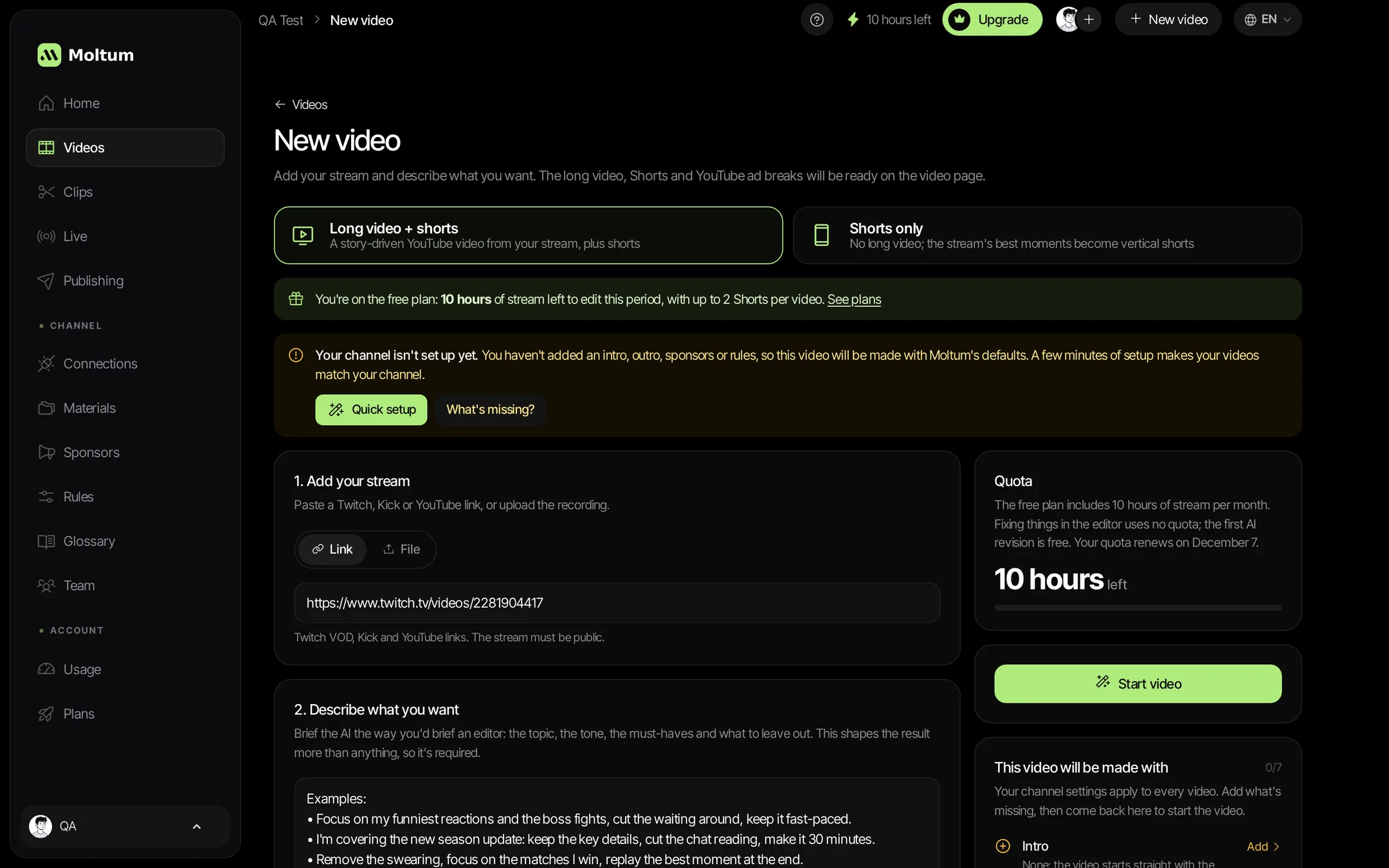
- Write the request: in 2. Describe what you want, write something like "cut the starting wait and technical problems, keep stories whole, put my commentary first in reactions."
- Chat moments: with Use chat activity too on in Rules, moments when Twitch or Kick chat suddenly picks up get priority.
- Lasting rules: add lines like "Cut the donation-reading parts" to Your channel's own rules; with Personal information on under Filter out sensitive content, phone numbers, addresses and similar info shown on screen or said aloud are kept out of the video.
- Shorts: with Shorts on, strong moments become vertical Shorts; with no separate facecam, the Automatic vertical layout crops to vertical and keeps the speaker in frame.
All of these settings are explained on the Rules help page.
Frequently asked questions
How long should a Just Chatting video be?
There's no fixed length. The measure is how many strong topics it has. Two good stories and a debate make a short, tight video; many topics that hold up alone can carry a longer one. Padding with weak topics wears viewers out.
Should I leave the chat window in the video?
If it's readable and helps viewers follow your answers, you can. If it's tiny, or usernames and personal details are visible, repeating the key questions out loud or putting them on screen gives a cleaner result.
Should I cut donation readings completely?
Usually, yes; back-to-back thank-yous drag the pace down in a video. If a donation message led to a funny conversation or a story, keep that moment and only trim the thank-you part.
Do I have to start every stream by hand?
On paid plans in Moltum, you can add your channel on the Connections page and switch on Auto mode; your new streams turn into videos on their own once they end. Write a request like "keep the chatting parts short" in Instructions for this account's streams under the gear icon and it's used for every stream from that account.


