
Short answer: when you turn a GTA 6 stream into a story video, the goal isn't to string together your best moments; it's to make an episode where viewers live through the story alongside you. Open where the game actually starts, keep cutscenes and missions in the order you played them, cut or speed up menus, loading screens, breaks and long drives, put your commentary and genuine reactions front and center, give each mission a chapter title, and end on a moment that makes people want the next episode.
An episode, not a highlight reel
One gaming stream can become two very different videos. The first is a highlight video: the funniest, wildest, most surprising moments back to back, order doesn't matter. We covered that in our post on making a gaming highlight video. The second is a story video, watched like an episode of a series: viewers should feel like they're seeing the game for the first time with you, get to know the characters and understand why each mission happens.
In a story-driven game, this format works well, because the story is already there. Your job is to shorten it without breaking it and add your own voice on top. So the first rule of the edit: you keep a moment not just because it's funny, but because it moves the story forward or shows how you reacted to the game.
Where should the video start?
The first stream of a new game rarely starts with the game: countdown, saying hi to chat, trailers, graphics settings, maybe waiting for a patch. That's normal on stream, but episode viewers want the game from the first minute.
- Find the real start: open near the game's first scene, or a short, excited line you said right before it.
- Try a quick preview: if you like, show a tiny glimpse of the episode's strongest moment in the first few seconds, then go back to the start. That promises viewers what's coming.
- Drop the settings talk: episode viewers rarely care which graphics preset you chose. If you said something important, keep it to one line.
Keep cutscenes and missions in order
The backbone of a story video is the game's own storytelling. Scenes that introduce characters, conversations that explain why a mission matters and moments where the story turns should stay. Cut them and viewers won't know who's who or why they're there in the next scene.
- Don't shuffle the order you played. In a highlight video you can move moments around; in an episode, the order is the story's order.
- Keep mission briefings short, but keep them. Leave the part that says what the goal is; drop the second time you hear the same briefing.
- Trim failed attempts. If you tried a mission five times, don't show all five. Usually the first try (it shows what's hard), the funniest or most frustrating one and the one that worked are enough.
- Don't go quiet during cutscenes. Instead of leaving a long cutscene without commentary, keep the moments where you react, guess or comment. Viewers are there to watch you.
What to cut
A long open-world stream naturally has a lot of empty time. These usually go first:
- Menus, scrolling the map, changing outfits and cars (unless there's a fun bit of commentary).
- Loading screens and moments where the game is paused.
- Breaks, AFK time or parts where you step away from the camera.
- Long drives: drop a drive where nothing happens; if you're talking or the drive is part of the story, play it at a few times normal speed.
- Donation reading and long conversations with chat: if it isn't about the game, it takes up room in an episode.
Cuts can leave small jumps in your speech; in gaming videos that's rarely a problem. What matters is not cutting in the middle of a sentence.
Your commentary and reactions are the real value
Other streamers are playing the same story. Viewers pick you because of your commentary, your jokes and your genuine reactions. Protect those moments in the edit: your first reaction to a twist, a nickname you gave a character, a guess about how to do a mission that turned out wrong. To find these moments in a long stream, the tips in our post on finding the best moments help here too; spots where chat suddenly picks up are a good place to start.
Audio: game sound, your mic and songs on the radio
If the game drowns out your voice, viewers miss your commentary. Lower the game audio a little while you talk and let the dialogue come through in cutscenes. If you didn't record the two separately and they ended up unbalanced, fixing that becomes an important part of the edit.
Then there's music. In the GTA series, the car radio usually plays real, licensed songs, and those can trigger copyright claims on YouTube. If the radio was on while you drove, mute that part, turn the song down or cut the section entirely. Checking for music before you upload beats fixing it later.
Chapters, titles and the series
A 4-8 hour stream can become one episode or several. Look for natural stopping points in the story: the end of a mission chain, a big cutscene, moving to a new area. End the episode at one of them, ideally at a moment that makes viewers ask what happens next.
Also split each episode into timestamped chapters, one for each mission or big scene. Viewers can find their place and see which mission sits at which minute. Our post on adding chapters to a YouTube video shows how to put them in the description. Use the episode number and the game's name in the title so series followers find it easily.
Age restrictions and sensitive scenes
The GTA series is made for adults, and some scenes may run into YouTube's age-restriction or advertiser-friendly rules. Before uploading, consider trimming, blurring or cutting those scenes. Check YouTube's current Community Guidelines and advertiser-friendly content guidelines. If you swore on stream and want to protect your ad revenue, make censoring part of the edit too.
Don't forget a Short or two
An episode tells a story; a Short sells a single moment. Posting the episode's funniest or most surprising moment as a vertical Short can bring new viewers to the long video. If you have a facecam, a camera-on-top, gameplay-below layout usually works well. Show what's happening in the very first second and don't try to explain the whole story.
Doing it with Moltum
Moltum edits your GTA 6 stream into an episode where the story plays out in order, following your request; it doesn't generate gameplay or voices, it only cuts and arranges your own recording.
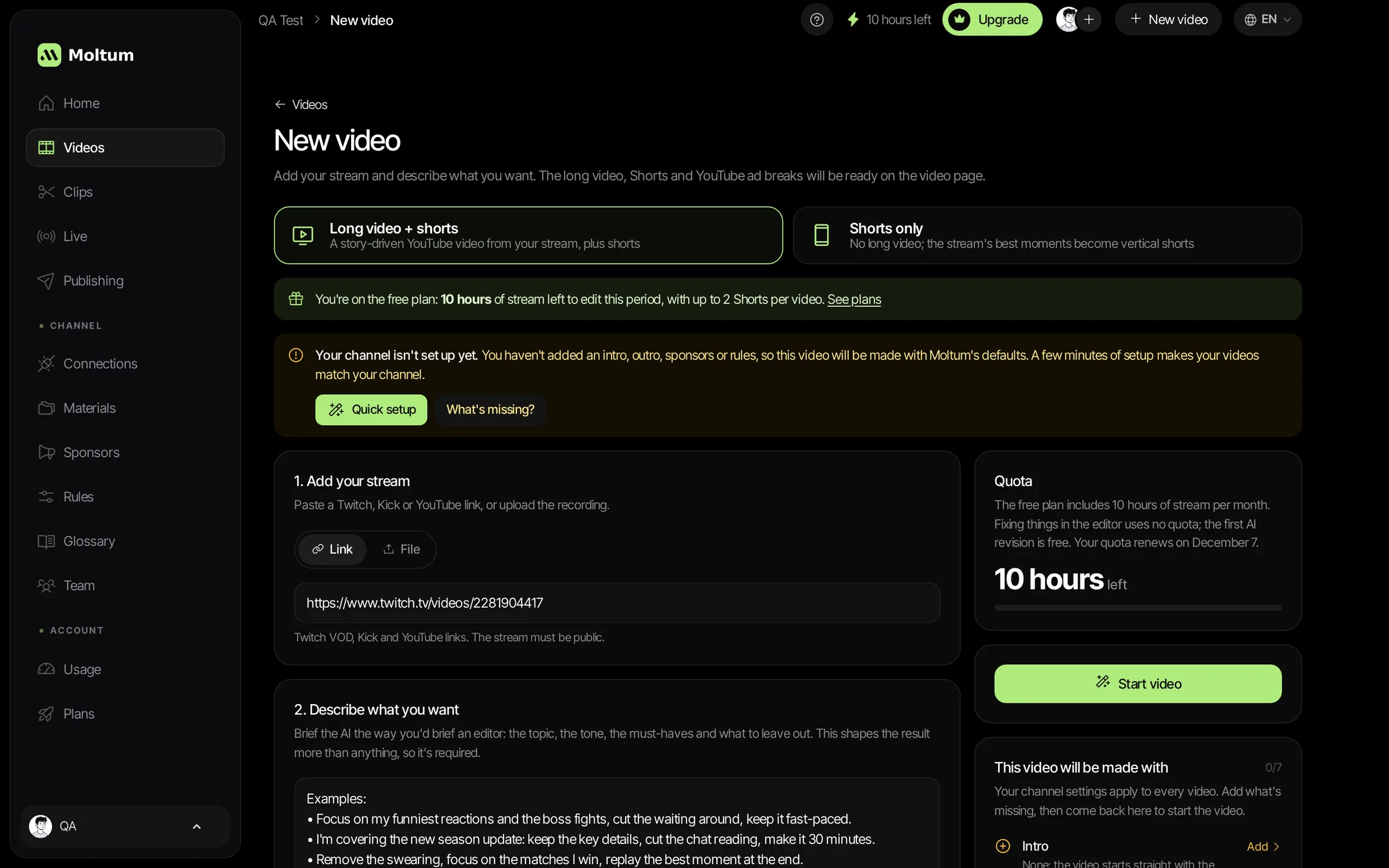
- Add the recording: paste a Twitch, Kick or YouTube link, or upload your file. If the recording is split into several files, upload them all and choose Combine into one video.
- Write the request: for example: “Make this episode 1 in story order, keep the cutscenes and mission dialogue, cut the settings and waiting parts, turn the game audio down and my voice up.” Then pick a Target length.
- Fine-tune in the editor: give a segment a Chapter title, speed up a long drive with Speed, and silence the radio with Mute audio.
- Shorts: with Shorts on, strong moments become vertical Shorts; under Vertical layout you can pick Camera on top, game below.
More in the video editor help page.
Frequently asked questions
How long should a GTA 6 episode be?
There's no fixed length; the real measure is the story's natural stopping point. Don't keep empty moments just to fill time.
Is it a problem to include cutscenes without commentary?
Long cutscenes with no commentary can lose viewers and make your video no different from the game itself. Shorten the scene and keep the moments where your reactions and guesses can be heard.
Can I get several episodes out of one stream?
Yes. If the story has natural stopping points, splitting the stream into episodes makes the series easier to follow. In Moltum, write something like “split it into 3 videos” in your request and the same recording becomes separate long videos, each with its own chapters and subtitle files; your quota is used once.
What should I do about songs on the radio?
Mute the parts where songs play, or cut them. In Moltum, Mute audio on the editor's Effects tab lists where music was detected; nothing is muted automatically, so you pick the ones that could cause a claim.


